Create messages, documents, spreadsheets and images
Kaiya can draft a message, create a file or translate material from the conversation and the sources you provide. Say who will read it, what they need to know and which sources Kaiya should use.
For a rewrite, summary or translation, name any facts, figures, decisions or caveats that Kaiya must keep.
Draft a message or email
Give Kaiya the facts, the recipient and the point you need to make:
Draft a follow-up email to the Acme Software CEO after today's briefing. Confirm
the agreed CFO profile, the decision still needed on location, and that the
off-limits list is due on Friday. Confirm that our next update is next Tuesday.
You can ask for several versions:
Draft a Teams message for the search team and a separate client email for
the Partner to review. Use the decisions and actions in the meeting notes above.
Do not include internal candidate commentary in the client email.
Check the facts, promises, names and dates. Edit the draft. Send it through your normal email or messaging service.
For messages based on a meeting, see Use voice notes and recordings.
Create a Word document
Kaiya creates a Word document and attaches the file to the conversation. Ask for one of your firm's existing templates or a standard Kaiya template.
If Kaiya cannot find a suitable template, contact the Kaiya team at hello@kaiya.ai. You can copy a draft from the chat into Word while the team sets up the template.
Create a two-page Word briefing for the Acme Software client meeting.
Use the assignment information and research in this conversation. Cover the
market, current candidate coverage and the decisions we need from the client.
Tell Kaiya what the reader needs to know and what the document must leave out.
The chosen template sets the headings, tables, lists and styles. If your firm needs a new or changed template, email hello@kaiya.ai.
For candidate documents, see Create candidate reports and profiles. For assignment reports, see Create assignment reports.
Translate text or a document
Paste the text into your message or attach the document. Name the target language. Say which names, company terms or job titles must remain unchanged.
Translate the attached candidate profile into French for a client in Paris.
Keep the facts, figures and caveats. Leave company and product names in
English. Use French finance titles where there is a clear equivalent. Flag terms
with more than one possible meaning. Create the translation as a Word document.
For a short passage, ask Kaiya to return the translation in the conversation. For a longer document, ask for a translated Word file.
Kaiya extracts the text from an attached document without preserving the layout. Ask for one of your firm's existing templates for the translation. For a new layout, contact the Kaiya team at hello@kaiya.ai. Attach screenshots if an image or page layout affects the meaning.
Create a spreadsheet
Kaiya creates Excel files with one worksheet. State which fields and calculations you need.
Create a spreadsheet comparing the target SaaS companies in this conversation.
Include ownership, sponsor, headquarters, estimated revenue band and the source
used for each fact. Show counts by sponsor in the chat.
For a workbook with several worksheets, ask for separate files. Combine them in Excel. Check missing values, sources and formulas before you use the file.
To export a search result, open Results from the navigation or mobile app menu. See Work with results.
Attach source material
Select the paperclip beside the message box to attach a file. Kaiya can read Word and Excel files, PowerPoint presentations, PDFs, text files, images and recordings.
For older Word or PowerPoint files, save a copy as .docx or .pptx. Attach the new file.
Kaiya extracts text and values from office files, but may not receive the page design, embedded images or spreadsheet formatting. Attach a screenshot when a visual detail affects the meaning.
If Kaiya cannot read the whole file, save the pages or worksheet you need as a separate file. Attach that smaller file.
See Use voice notes and recordings for audio and video files.
Create or edit an image
Describe the image you want.
Include:
- What the image is for.
- The subject, setting and important details.
- The visual style and mood.
- The orientation or dimensions.
- Brand colours or reference images.
- Anything that must not appear.
State whether you want a new image or an edit to the most recent image you supplied. Keep important wording outside the image because generated text can contain errors.
Interview scene
Create a portrait image for an article about executive interviews.
Show a senior finance candidate in a modern office during a serious but warm
conversation. Use natural daylight, restrained colours and a photographic style.
Leave clear space at the top for a headline, but do not add text to the image.

Example image: an interview scene for an article.
Executive-search team
Create a landscape image of an executive-search team reviewing a candidate
market together. Use a polished 3D animation style, a bright office and a calm
professional mood. Show the team comparing profiles and market data. Do not add
logos or text.

Example image: an illustrated executive-search team.
Executive-search process
Create a square flat-design infographic that shows six stages: client brief,
market mapping, candidate research, interviews, shortlist and appointment. Use
Kaiya's purple, gold and white brand colours. Keep labels short and legible.
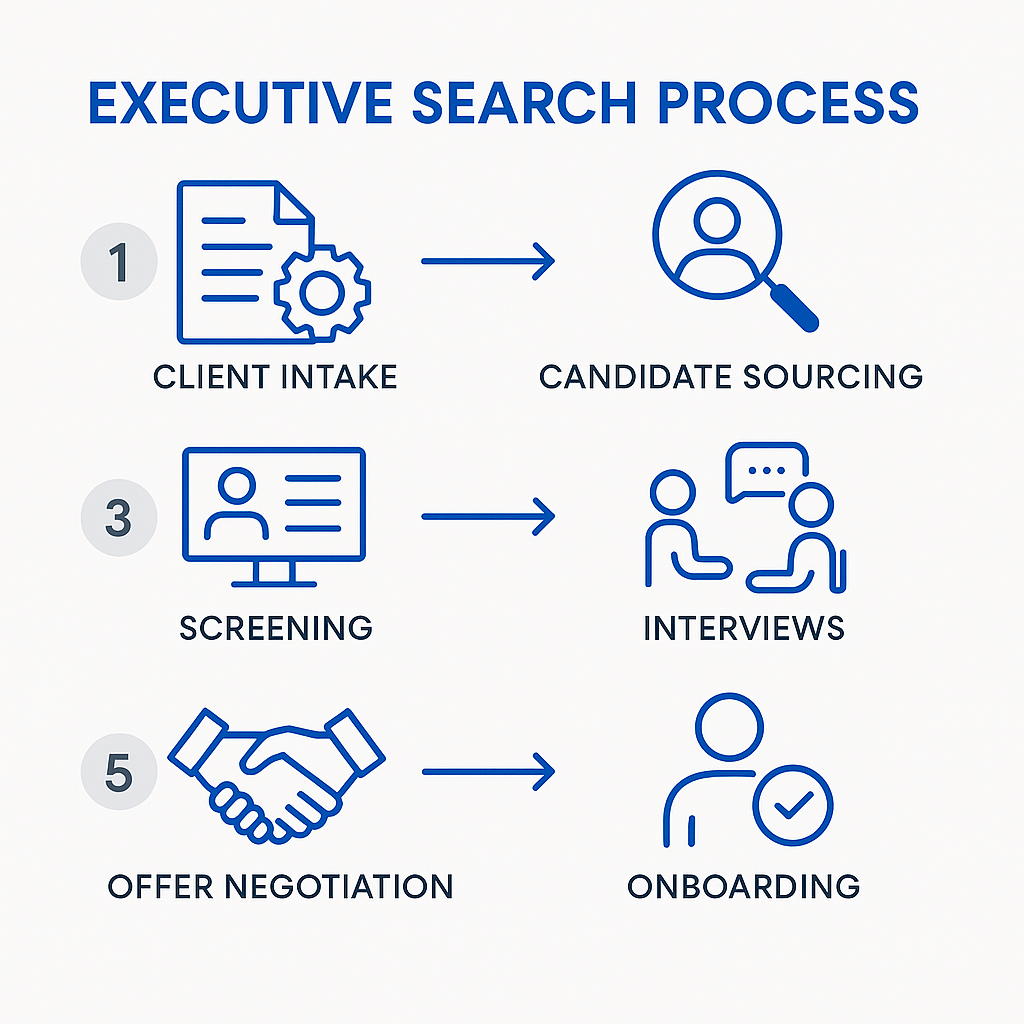
Example image: stages in an executive search. Check the labels before you use a generated infographic.
Organisation chart
Create a transparent organisation chart with a CEO above the COO, CFO, CTO and
CMO. Use a restrained isometric style and a different colour for each function.
Make the role labels easy to read on light and dark backgrounds.

Example image: an organisation chart. Check the role labels and reporting lines before use.
Edit the last image
Describe the change and what must stay the same.
Edit the last image. Change the background to a pale grey office and keep the
people, composition and lighting unchanged.
Kaiya can edit the last generated image or your last image attachment. To edit an older image, attach it again and name it in your request.
Check a generated file
Before you use a file:
- Check names, dates, figures and sources.
- Confirm that the document says what the reader needs to know.
- Check formulas and missing spreadsheet values.
- Inspect image text, hands, faces and brand details.
Tell Kaiya what to correct. Continue in the same conversation so Kaiya can use the earlier material and your decisions.